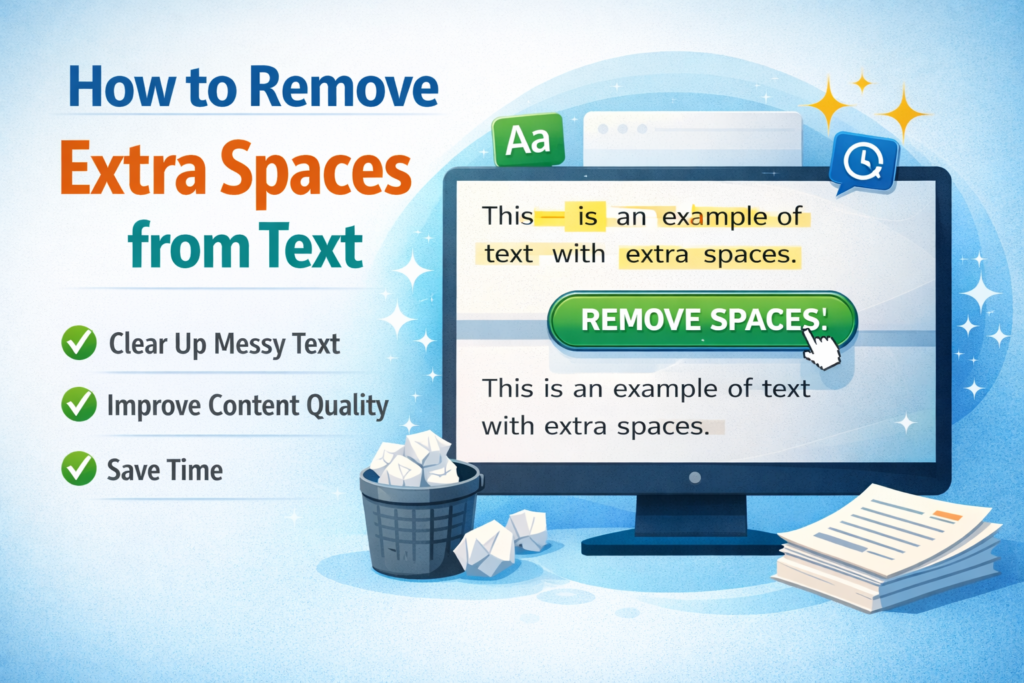
When working with text copied from websites, PDFs, documents, or emails, you often notice extra spaces between words, sentences, or paragraphs. These unnecessary spaces make the text look messy and difficult to read.
If you manually try to remove them, it can take a lot of time especially when dealing with large text. That’s why many people use online tools or quick formatting methods to remove extra spaces instantly.
In this guide, you will learn how to remove extra spaces from text easily using different methods, including online tools, text editors, and manual techniques.
What Are Extra Spaces in Text?
Extra spaces are unnecessary blank spaces that appear between words, sentences, or lines. These spaces usually appear when text is copied from different sources such as:
- Websites
- PDF documents
- Word files
- Email messages
- OCR scanned text
For example:
Messy text
Clean text
Removing these spaces makes the content clean, readable, and professional.
Why You Should Remove Extra Spaces
Cleaning extra spaces is important for many reasons.
Improves Readability
Text with proper spacing is easier to read and understand, especially for articles, emails, and reports.
Better Formatting
Removing extra spaces helps maintain consistent formatting across documents and web content.
Useful for Developers
Programmers often remove extra spaces to clean data before processing or storing it in databases.
Improves SEO Content Quality
Search engines prefer well-structured and clean text, which improves the overall quality of web content.
Method 1: Use an Online Extra Space Remover Tool
The easiest way to remove extra spaces from text is by using an online text cleaning tool.
Steps
- Copy your messy text.
- Open an Extra Space Remover tool.
- Paste the text into the input box.
- Click the Remove Spaces or Clean Text button.
- Copy the cleaned text.
The tool automatically removes multiple spaces and converts them into single spaces within seconds.
This method is perfect for bloggers, developers, students, and digital marketers.
Method 2: Remove Extra Spaces in Microsoft Word
If you are working in Microsoft Word, you can remove extra spaces using the Find and Replace feature.
Steps
- Press Ctrl + H to open Find and Replace.
- In the Find box, type two spaces.
- In the Replace box, type one space.
- Click Replace All.
Repeat the process until no extra spaces remain.
Method 3: Remove Extra Spaces Using Google Docs
Google Docs also allows you to fix spacing issues easily.
Steps
- Copy the text into Google Docs.
- Click Edit → Find and Replace.
- Enter two spaces in the Find field.
- Replace them with one space.
This will clean up unnecessary spacing.
Method 4: Use Text Editors
Text editors like Notepad++, VS Code, or Sublime Text can remove extra spaces using regular expressions.
For example, developers often use:
This pattern replaces multiple spaces with a single space.
Common Situations Where Extra Spaces Appear
Extra spaces often appear in these situations:
Copying from PDFs
PDF text extraction frequently adds random spacing and broken lines.
Copying Website Content
Sometimes HTML formatting introduces extra spacing when copied.
OCR Scanned Documents
Optical Character Recognition may create irregular spacing errors.
Importing Data Files
CSV or text data imports can include unwanted spaces between values.
Benefits of Using an Extra Space Remover Tool
Using a dedicated tool offers several advantages.
Saves Time
Large text files can be cleaned in seconds instead of manual editing.
Handles Large Content
Online tools can process thousands of words instantly.
Easy to Use
Most tools only require copy, paste, and click.
Improves Content Quality
Clean text improves readability, formatting, and presentation.
Best Practices for Cleaning Text
To ensure the best results when removing extra spaces:
- Always review the cleaned text before publishing
- Avoid removing spaces that are necessary for formatting
- Use reliable text tools for better accuracy
- Combine extra space removal with other cleaning tools
FAQs
Q: What is the fastest way to remove extra spaces from text?
A: The fastest way is using an online extra space remover tool. Simply paste your text into the tool, click clean, and it will instantly convert multiple spaces into single spaces without affecting the original text content.
Q: Can extra spaces affect SEO?
A: Yes, excessive spaces can make content look poorly formatted and difficult to read. While search engines may still understand the content, clean and structured text improves user experience and overall content quality, which indirectly benefits SEO.
Q: How do extra spaces appear in copied text?
A: Extra spaces usually appear when text is copied from PDFs, websites, or scanned documents. Different formatting styles and encoding systems often create unwanted spaces between words or sentences.
Q: Can developers remove extra spaces automatically?
A: Yes, developers often use regular expressions, scripts, or text processing tools to automatically remove multiple spaces and normalize text formatting in large datasets.
Q: Is it safe to use an online text cleaner?
A: Most online text cleaner tools process text directly in the browser without storing data. However, it is always recommended to avoid pasting sensitive or confidential information in online tools.
Conclusion
Extra spaces in text can make content look messy and difficult to read. Whether you are a writer, student, developer, or digital marketer, cleaning text is an important step before publishing or processing content.
The easiest solution is to use an online extra space remover tool, which can clean large amounts of text instantly. You can also use tools like Microsoft Word, Google Docs, or text editors for manual cleaning.
By keeping your text clean, properly spaced, and well-formatted, you improve readability, productivity, and overall content quality.
Read Also
- How to Remove Special Characters from Text Online Free Without Login
- Convert Text Case In Html Content Quickly
- Convert Text Case for CSV Files Online – Accurate & Effortless
- Bulk Convert Text Case for Large Content
- How To Convert Mixed Case Text To Proper Case
- Fix Incorrect Capitalization In Copied Text Online
- Convert Text To Title Case For YouTube Titles: The Ultimate Guide
- Change Text Case in Notepad++ Easily (Guide With Real Use Cases)
- Convert Sentence Case In Bulk Online Free
- Convert Lowercase To Uppercase In Google Docs Automatically