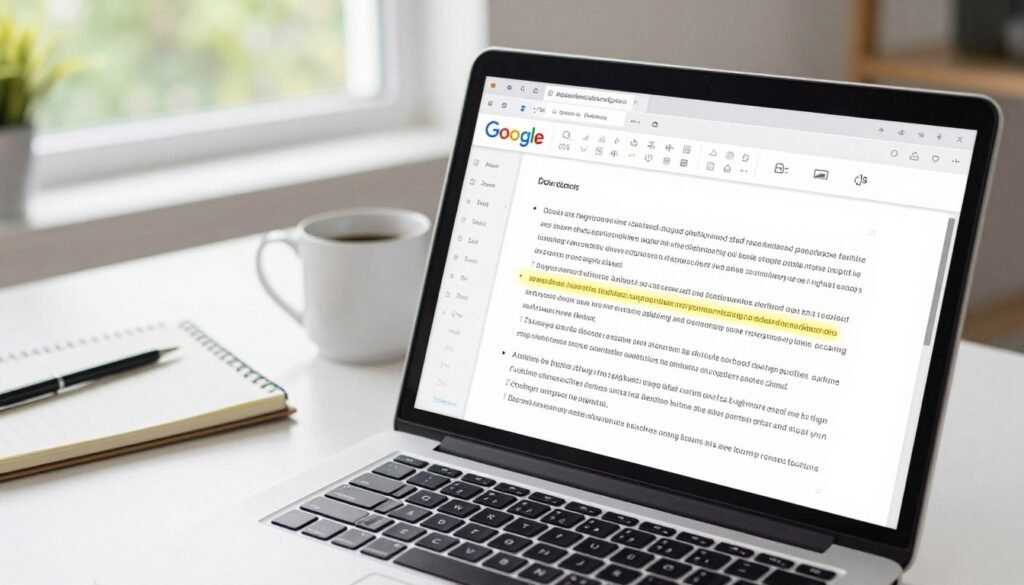
Ever typed a page and then realized it needed a bolder look? Working with Google Docs is usually easy. But fixing small mistakes manually is a drag. It takes up your precious time.
Proper styling makes your documents look professional. Keeping your text formatting neat is key for any official document. A quick uppercase converter makes your headers pop without extra work.
Good styling shows you pay attention to the details in your writing. This guide will show you how to change your text style in seconds. You’ll learn some quick tricks to make editing faster.
Managing your files should always be easy and stress-free. We make it simple to convert every lowercase letter for your final text needs with just a few clicks. Let’s get started!
Understanding Text Formatting in Google Docs
Learning about text formatting in Google Docs can make your documents easier to read. It’s not just about making your document look good. It’s also about making sure your message is clear and professional.
Proper text case is key to your document’s look and readability. Keeping your text formatting consistent helps keep your document professional. It makes your document more engaging and easier to understand.
Why Proper Text Case Matters for Professional Documents
Using the right text case is vital for professional documents. It can change how your document is seen by the reader. For example, a document with mixed case can look sloppy or unprofessional.
Inconsistent text case can confuse readers and make your document hard to read. Headings and titles should be in title case, while body text should be in sentence case. Keeping this consistent is important for a well-formatted document.
The Limitations of Manual Text Editing
Manual text editing can be slow and error-prone. Changing text case for big documents is very tedious. Plus, manual editing doesn’t ensure consistency throughout the document.
To get around these issues, Google Docs has tools and features to help. These tools can automate and simplify text formatting. Knowing about these features is important for making documents efficiently.
How to Convert Lowercase to Uppercase Using the Built-in Menu
Google Docs makes it easy to switch text case. This is great for keeping documents professional. It’s simple to turn lowercase to uppercase.
Accessing the Format Menu Options
To start, go to the Format menu in Google Docs. First, select the text you want to change. Highlight the text you choose. Then, click on “Format” at the top menu bar.
Look for “Transform” or “Change case” in the Format menu. This will show a list of case options.
Applying Uppercase to Selected Text Blocks
Choose “Uppercase” from the menu to make your text uppercase. Google Docs will change it right away.
Troubleshooting Common Formatting Issues
Sometimes, changing text case doesn’t work right. Make sure the text is selected before you change it.
If problems keep happening, try “Clear formatting” from the Format menu. Then, try changing the case again.
Utilizing Keyboard Shortcuts for Faster Formatting
Learning keyboard shortcuts in Google Docs can really boost your productivity. It saves you time on formatting, letting you dive deeper into creating content.
Essential Shortcuts for Windows Users
Windows users have many shortcuts to make formatting easier. Here are some key ones:
- Ctrl + Shift + A: Convert selected text to uppercase
- Ctrl + Shift + a: Convert selected text to lowercase
- Ctrl + B: Bold selected text
- Ctrl + I: Italicize selected text
- Ctrl + U: Underline selected text
Essential Shortcuts for macOS Users
Mac users have similar shortcuts, but with a twist:
- ⌘ + Shift + A: Convert selected text to uppercase
- ⌘ + Shift + a: Convert selected text to lowercase
- ⌘ + B: Bold selected text
- ⌘ + I: Italicize selected text
- ⌘ + U: Underline selected text
Tips for Speeding Up Your Workflow
To get the most out of shortcuts, follow these tips:
- Practice regularly to become familiar with the shortcuts.
- Customize your shortcuts if possible, to fit your workflow.
- Use shortcuts in combination with other Google Docs features for enhanced productivity.

keyboard shortcuts
By using these shortcuts daily, you can cut down formatting time. This boosts your productivity in Google Docs.
Leveraging Google Docs Add-ons for Advanced Case Control
To improve your document editing, use Google Docs add-ons for advanced case control. Google Docs has many add-ons that make editing better, focusing on text case management.
These add-ons, found in the Google Workspace Marketplace, offer tools for case conversion. They help automate and simplify your work. By using these tools in Google Docs, you can make your documents more precise and consistent.
Finding Reliable Add-ons in the Google Workspace Marketplace
The Google Workspace Marketplace has many add-ons for Google Docs. To find a good case control add-on, search for “case converter” or “text case changer” in the Marketplace.
When picking an add-on, check the ratings, user reviews, and if it works with your Google Docs version. This ensures you get a reliable and useful tool.

Google Workspace Marketplace
Installing and Configuring Case Converter Tools
After finding a good add-on, installing it is easy. Just click “Install” and follow the instructions to allow the necessary permissions.
After installing, you can find the add-on in the “Add-ons” menu in Google Docs. The setup might vary, but most offer options for different case styles like uppercase, lowercase, and title case.
Managing Multiple Text Styles Simultaneously
Using advanced add-ons for case control lets you handle multiple text styles at once. This is great for complex documents needing different case styles.
With an add-on that supports batch processing or multiple selections, you can quickly apply various case styles to your document. This saves time and reduces the chance of formatting mistakes.
Automating Text Case Changes with Google Apps Script
Google Apps Script is a great tool for automating text formatting in Google Docs. It lets users create custom functions that work with Google Docs. This makes it easy to automate repetitive tasks.
Getting Started with the Apps Script Editor
To start automating text case changes, first open the Google Apps Script editor. You can do this by opening your Google Doc, then clicking “Extensions” > “Apps Script.” This opens the editor where you can write or paste your automation script.
Writing a Simple Script to Toggle Text Case
You can write a simple script to toggle text case. For example, here’s a script to convert selected text to uppercase:
| Step | Description |
| 1 | Access the Apps Script editor from your Google Doc. |
| 2 | Write or paste your script into the editor. |
| 3 | Run the script and authorize it if necessary. |
Best Practices for Maintaining Consistent Document Style
Having a consistent document style is key for clear communication. A well-kept style makes your documents easy to read and looks professional. This is very important when many people work on one document together.
Establishing a Style Guide for Your Team
A style guide is like a rulebook for your documents. It covers formatting, tone, and language. Having one ensures everyone knows the rules, making teamwork smoother.
Key elements to include in your style guide:
- Preferred font styles and sizes
- Heading and subheading formats
- Rules for case usage (uppercase, lowercase, title case)
- Tone and language preferences
Using Paragraph Styles to Automate Formatting
Google Docs has a feature called “Paragraph styles” for consistent formatting. It makes formatting documents easier and less prone to errors.
To use paragraph styles effectively:
- Define your paragraph styles based on your style guide.
- Apply these styles to the relevant sections of your document.
- Update the styles as needed to maintain consistency.
Reviewing Documents for Case Consistency
It’s important to check your documents for case consistency regularly. This means making sure headings, titles, and body text are all the same. Consistent case usage makes your documents look better and easier to read.
Tips for reviewing case consistency:
- Use the “Find and replace” feature to identify inconsistencies.
- Check headings and titles for uniform case usage.
- Ensure that body text adheres to your chosen case convention.
Conclusion
Managing text formatting well is key to making professional documents in Google Docs. This article covered how to change text to uppercase. We looked at menu options, keyboard shortcuts, and tools like add-ons and Google Apps Script.
Learning how to format text in Google Docs boosts your productivity and keeps your documents looking good. It’s useful for both personal projects and team work. Using the right text case improves your document’s quality.
Now, you know how to make your Google Docs documents better. You can work more efficiently and keep your style consistent.
FAQ
How do I quickly change lowercase text to uppercase in Google Docs?
Is there a keyboard shortcut to toggle case in Google Docs?
Can I use add-ons to handle more complex text case changes?
How does using Google Apps Script help with text automation?
Why should I bother with proper capitalization and document styling?
Does the capitalization tool work on the Google Docs mobile app?
Read Also
- How to Remove Special Characters from Text Online Free Without Login
- Convert Text Case In Html Content Quickly
- Convert Text Case for CSV Files Online – Accurate & Effortless
- Bulk Convert Text Case for Large Content
- How To Convert Mixed Case Text To Proper Case
- Fix Incorrect Capitalization In Copied Text Online
- Convert Text To Title Case For YouTube Titles: The Ultimate Guide
- Change Text Case in Notepad++ Easily (Guide With Real Use Cases)
- Convert Sentence Case In Bulk Online Free
- Convert Lowercase To Uppercase In Google Docs Automatically