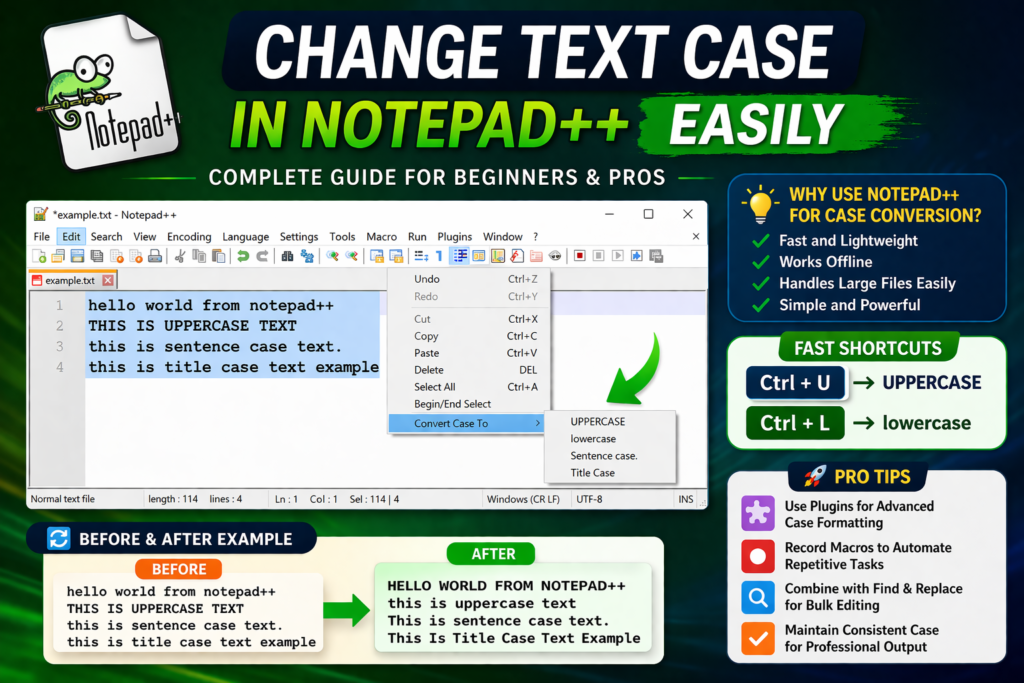
If you’ve ever worked with text for more than a few minutes, you already know how frustrating formatting can be. Sometimes you copy content from a website and everything comes in uppercase. Other times, your headings look inconsistent, or your code breaks because of one small case mistake.
At first, it feels like a small issue. But when you start fixing it manually line by line it quickly turns into a time-consuming task.
This is exactly where Notepad++ becomes more than just a simple text editor.
Most people open Notepad++ to write or edit text. But those who use it properly know that it can completely change how you handle text formatting. One of its most useful features is the ability to change text case instantly, without any effort.
In this guide, we are not just going to click buttons and finish. We’ll actually understand how this feature fits into real workflows, why it matters, and how you can use it efficiently instead of just mechanically.
💻 Why Case Formatting Becomes a Real Problem
Imagine you are writing a blog post and your headings are all in lowercase. It looks unprofessional. You decide to fix it. But doing it manually for 20 headings already feels repetitive.
Now imagine working with 2,000 lines of data or code. Suddenly, a “small issue” becomes a big one.
The same thing happens in coding environments. Many programming languages are case-sensitive. That means even a single uppercase or lowercase mismatch can break your entire script. It’s not just about looks—it’s about functionality.
Even in SEO content, consistency matters. Titles, headings, and paragraphs follow different casing styles. If you don’t maintain that structure, your content feels unpolished.
This is why case conversion is not just a feature it’s a necessity.
🔄 How Notepad++ Solves This Instantly
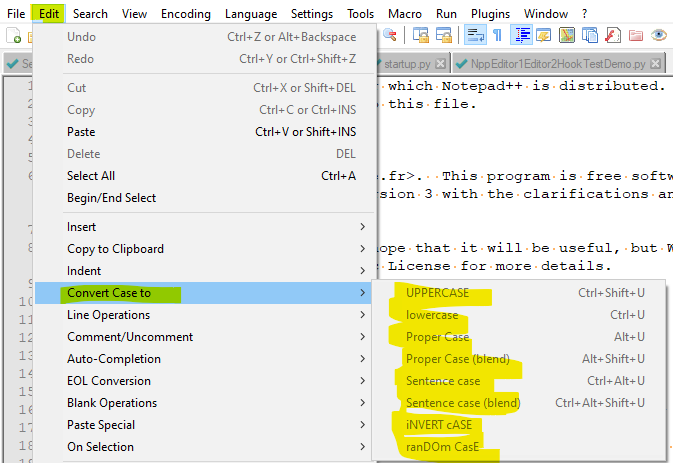
When you use Notepad++, the entire process becomes effortless.
Instead of editing text word by word, you simply select the portion you want to change and apply a case transformation. Within seconds, everything is corrected.
But the real beauty of this feature is not just speed—it’s control.
You can decide exactly how your text should look. Whether you want everything in uppercase, lowercase, or properly formatted, the tool responds instantly.
And once you start using shortcuts, the experience becomes even smoother. You don’t even need to think about the process anymore. It becomes part of your workflow.
⚡ The Shift From Beginner to Smart User
Most beginners use Notepad++ in a very basic way. They rely on menus, click through options, and take a longer route to complete simple tasks.
But experienced users work differently.
They don’t “do more work”—they do the same work faster.
The moment you start using shortcuts like Ctrl + U or Ctrl + L, you stop breaking your flow. You don’t pause to navigate menus. You simply select, press, and move on.
This small shift makes a big difference over time.
It’s like typing with two fingers versus typing without looking at the keyboard. Both work—but one is clearly more efficient.
🧠 Understanding When to Use Which Case
Changing text case is easy. Using the right case is where most people struggle.
Different situations require different formats, and this is something you only understand through experience.
For example, blog titles usually follow Title Case because it improves readability and looks more professional. On the other hand, paragraphs are written in sentence case because it feels natural to read.
In coding, uppercase might be used for constants, while lowercase is often preferred for variables. In data cleaning, consistent casing helps maintain uniformity.
So the goal is not just to change text—it’s to apply the right format in the right place.
And once you understand that, this feature becomes much more powerful.
🔧 What Happens When You Work With Large Files


Everything feels easy when you’re working with small text. But the real test comes when you’re handling large files. Thousands of lines. Mixed formatting. Inconsistent structure. This is where manual editing becomes impossible.
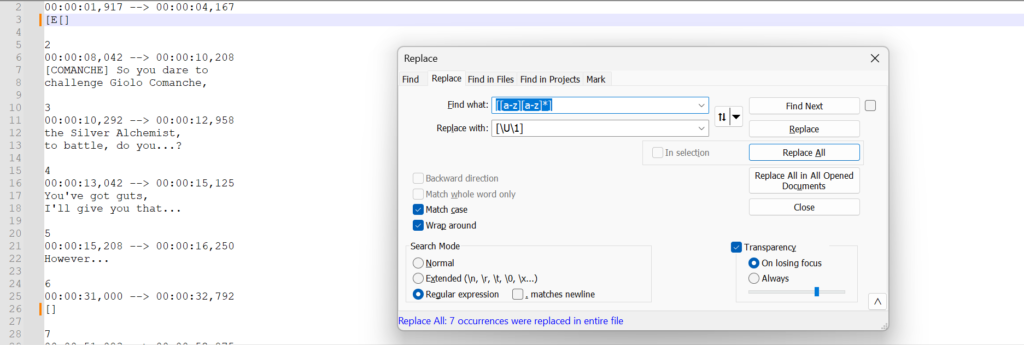
Notepad++ allows you to handle these situations efficiently. You can select large sections of text and apply transformations instantly. No lag, no complications. And if you combine this with find-and-replace features, you can clean entire datasets in minutes. This is the point where a simple tool starts feeling powerful.
🚀 Moving Beyond Basics (What Most People Never Explore)
Most users stop after learning uppercase and lowercase conversion. But Notepad++ has more potential than that. With plugins and scripting, you can extend its functionality even further. You can create custom formatting rules, automate repetitive tasks, and handle complex transformations.
For example, if you regularly format blog content, you can set up a workflow where headings, spacing, and casing are all fixed in one go. If you work with data, you can standardize entire files without touching each line. This is where Notepad++ stops being just an editor and becomes a productivity tool.
💡 Why This Skill Actually Matters
It might sound simple, but mastering small features like case conversion has a bigger impact than you think.
It improves your workflow.
It saves time.
It reduces frustration.
And most importantly, it helps you maintain consistency.
Whether you are writing content, coding, or managing data, consistency is what separates professional work from messy work.
📌 Final Thoughts
Changing text case in Notepad++ is one of those features that looks small on the surface but becomes incredibly valuable once you start using it regularly.
It removes repetitive work, speeds up your process, and helps you focus on what actually matters instead of wasting time on small corrections.
Once you get comfortable with it, you won’t even think about it anymore. It will simply become part of how you work.
And that’s when you know you’re using the tool the right way.
FAQs
Q: How can I change text case quickly in Notepad++?
A: You can select your text and use shortcuts like Ctrl + U for uppercase or Ctrl + L for lowercase to make instant changes.
Q: Does Notepad++ support advanced case formats like title case?
A: By default, it supports basic conversions, but you can use plugins to achieve advanced formatting like title case.
Q: Why is text case important in programming?
A: Because many programming languages are case-sensitive, and incorrect casing can cause errors or unexpected behavior.
Q: Can Notepad++ handle large text files for case conversion?
A: Yes, it is designed to handle large files efficiently, making bulk text transformations quick and easy.
Read Also
- How to Remove Special Characters from Text Online Free Without Login
- Convert Text Case In Html Content Quickly
- Convert Text Case for CSV Files Online – Accurate & Effortless
- Bulk Convert Text Case for Large Content
- How To Convert Mixed Case Text To Proper Case
- Fix Incorrect Capitalization In Copied Text Online
- Convert Text To Title Case For YouTube Titles: The Ultimate Guide
- Change Text Case in Notepad++ Easily (Guide With Real Use Cases)
- Convert Sentence Case In Bulk Online Free
- Convert Lowercase To Uppercase In Google Docs Automatically