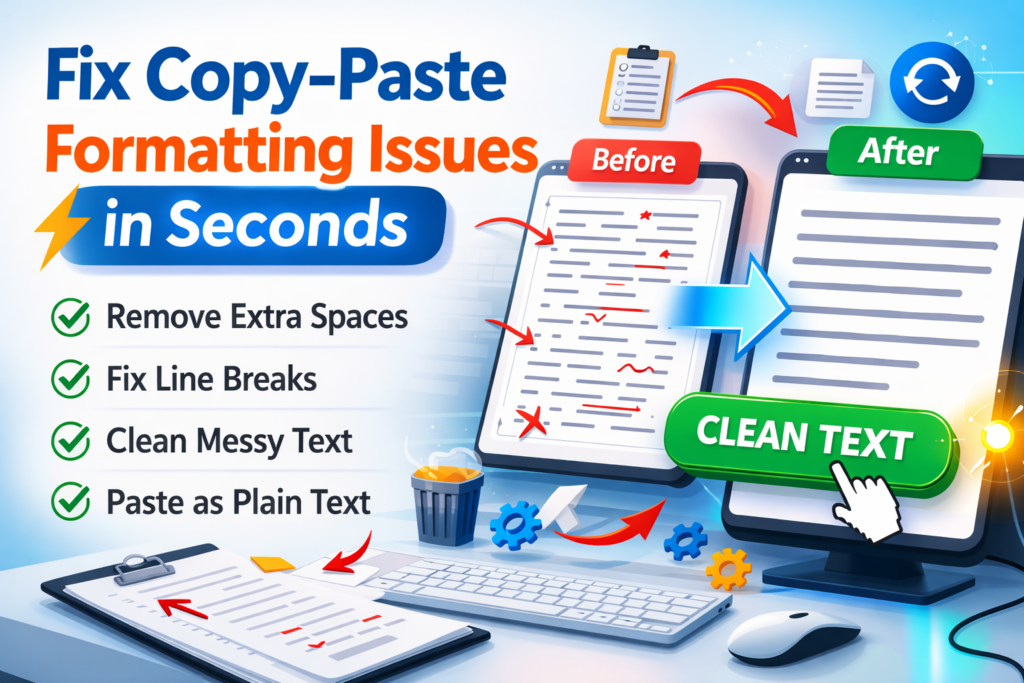
Copying text from websites, PDFs, emails, or documents is something we do every day. But when you paste that text somewhere else, it often comes with broken formatting, extra spaces, strange remove line breaks, or unwanted characters.
These formatting issues make the text look messy and difficult to use in articles, documents, or code. Instead of fixing everything manually, you can fix copy-paste formatting issues in seconds using simple techniques or online text tools.
In this guide, you’ll learn why formatting problems occur and how to quickly clean copied text for better readability and usability.
What Are Copy-Paste Formatting Issues?
Copy-paste formatting issues happen when text keeps the original formatting from the source where it was copied.
For example, when you copy text from:
- Websites
- PDF files
- Microsoft Word documents
- Emails
- Scanned OCR text
The pasted content may include:
- Extra spaces
- Unwanted line breaks
- Different fonts
- HTML formatting
- Special characters
These problems can make the text look disorganized and hard to edit.
Why Do Copy-Paste Formatting Problems Occur?
Formatting issues occur because different platforms use different text formatting systems.
For example:
Different Font Styles
When text is copied from a website, it may include font styles, colors, or HTML formatting.
Hidden Characters
Many documents contain hidden formatting characters that appear when pasted somewhere else.
Line Break Problems
PDF files often insert random line breaks after every line, making paragraphs look broken.
Encoding Differences
Text copied from different software may include encoding characters that disrupt formatting.
Quick Ways to Fix Copy-Paste Formatting Issues
There are several simple methods to clean copied text instantly.
1. Use a Text Cleaner Tool
The easiest method is using an online text cleaner tool.
These tools automatically remove:
- Extra spaces
- Unwanted line breaks
- Duplicate lines
- Special characters
- Formatting tags
How to use it
- Copy the messy text
- Paste it into the text cleaner tool
- Click Clean Text
- Copy the cleaned version
The entire process takes only a few seconds.
2. Paste Without Formatting
Many applications allow you to paste text without formatting.
Use the shortcut:
Ctrl + Shift + V
This removes most formatting and pastes the text as plain text only.
3. Use a Text Editor
Basic text editors like Notepad remove formatting automatically.
Steps:
Paste the copied text into Notepad
Copy it again
Paste it into your document
This removes most unwanted formatting.
4. Use Word’s Clear Formatting Option
In Microsoft Word, you can remove formatting easily.
Steps:
- Select the pasted text
- Click Clear Formatting
- The text returns to default formatting
Benefits of Fixing Copy-Paste Formatting
Cleaning copied text improves both productivity and content quality.
Saves Time
Instead of fixing formatting manually, tools can clean text instantly.
Improves Readability
Clean text is easier to read and understand.
Better Content Quality
Well-formatted content looks professional and organized.
Useful for Developers and Writers
Developers, bloggers, students, and marketers often need clean text for publishing or coding.
Who Needs Copy-Paste Text Cleaning Tools?
Many professionals rely on text cleaning tools daily.
Bloggers and Writers
Writers often copy research material from websites and need to remove formatting before publishing.
Developers
Developers clean text before using it in code or databases.
Students
Students copy notes and research content that may contain messy formatting.
Digital Marketers
Marketers prepare clean content for emails, ads, and social media posts.
Best Practices When Copying Text
To avoid formatting problems, follow these tips:
- Paste text as plain text whenever possible
- Use text cleaning tools for large content
- Remove extra spaces and line breaks
- Review text formatting before publishing
These small steps can save a lot of time when working with copied content.
FAQs
Q: How do I remove formatting when copying text?
A: You can remove formatting by using Ctrl + Shift + V to paste plain text or by using an online text cleaner tool that automatically removes extra spaces, line breaks, and unwanted formatting.
Q: Why does copied text look messy after pasting?
A: Copied text keeps the formatting of the original source. When pasted into another application, different formatting rules may cause extra spaces, broken lines, or inconsistent fonts.
Q: What is the fastest way to fix formatting issues?
A: The fastest method is using an online text cleaner tool that removes formatting problems instantly and converts messy text into clean, readable content.
Q: Can formatting issues affect content readability?
A: Yes, messy formatting can make text harder to read and understand. Clean formatting improves user experience, readability, and professional presentation.
Q: Are text cleaner tools safe to use?
A: Most online text cleaner tools process text directly in your browser and do not store the content. However, you should avoid pasting sensitive or confidential information.
Conclusion
Copy-paste formatting issues are very common when working with text from different sources. These issues can include extra spaces, broken lines, inconsistent fonts, or hidden formatting characters.
The good news is that you can fix copy-paste formatting issues in seconds using simple techniques like pasting as plain text, using text editors, or using online text cleaner tools.
By cleaning copied text before using it, you ensure your content remains clear, readable, and professionally formatted.
Read Also
- How to Remove Special Characters from Text Online Free Without Login
- Convert Text Case In Html Content Quickly
- Convert Text Case for CSV Files Online – Accurate & Effortless
- Bulk Convert Text Case for Large Content
- How To Convert Mixed Case Text To Proper Case
- Fix Incorrect Capitalization In Copied Text Online
- Convert Text To Title Case For YouTube Titles: The Ultimate Guide
- Change Text Case in Notepad++ Easily (Guide With Real Use Cases)
- Convert Sentence Case In Bulk Online Free
- Convert Lowercase To Uppercase In Google Docs Automatically